NVIDIA 推出更快的 DLSS Frame Generation 性能模式 面向 RTX 50 与 40 系列
NVIDIA Introduces Faster DLSS Frame Generation Performance Mode On RTX 50 And 40 Series
NVIDIA 推出适用于 RTX 40 与 50 系列及 RTX Spark 笔记本的更快 DLSS Frame Generation 性能模式 Preset C,RTX 5060 帧生成速度最高提升 35%。该模式以轻微画质下降为代价,目前仍为测试版,需通过 NVIDIA App 的 Frame Generation override 手动开启。

It’s a whirlwind week for NVIDIA in the consumer graphics space, with one of the new updates being a new, faster Performance Mode for Frame Generation. The update will be applicable to GeForce RTX 40 Series, RTX 50 Series, and RTX Spark laptops.
Preset C
The new Frame Generation Performance Mode is called “Preset C”, and it is accessible through the NVIDIA App’s Frame Generation override. The company says that Preset C replaces the previous AI model with a faster and lighter algorithm, designed to boost frame rates across existing Frame Generation models.
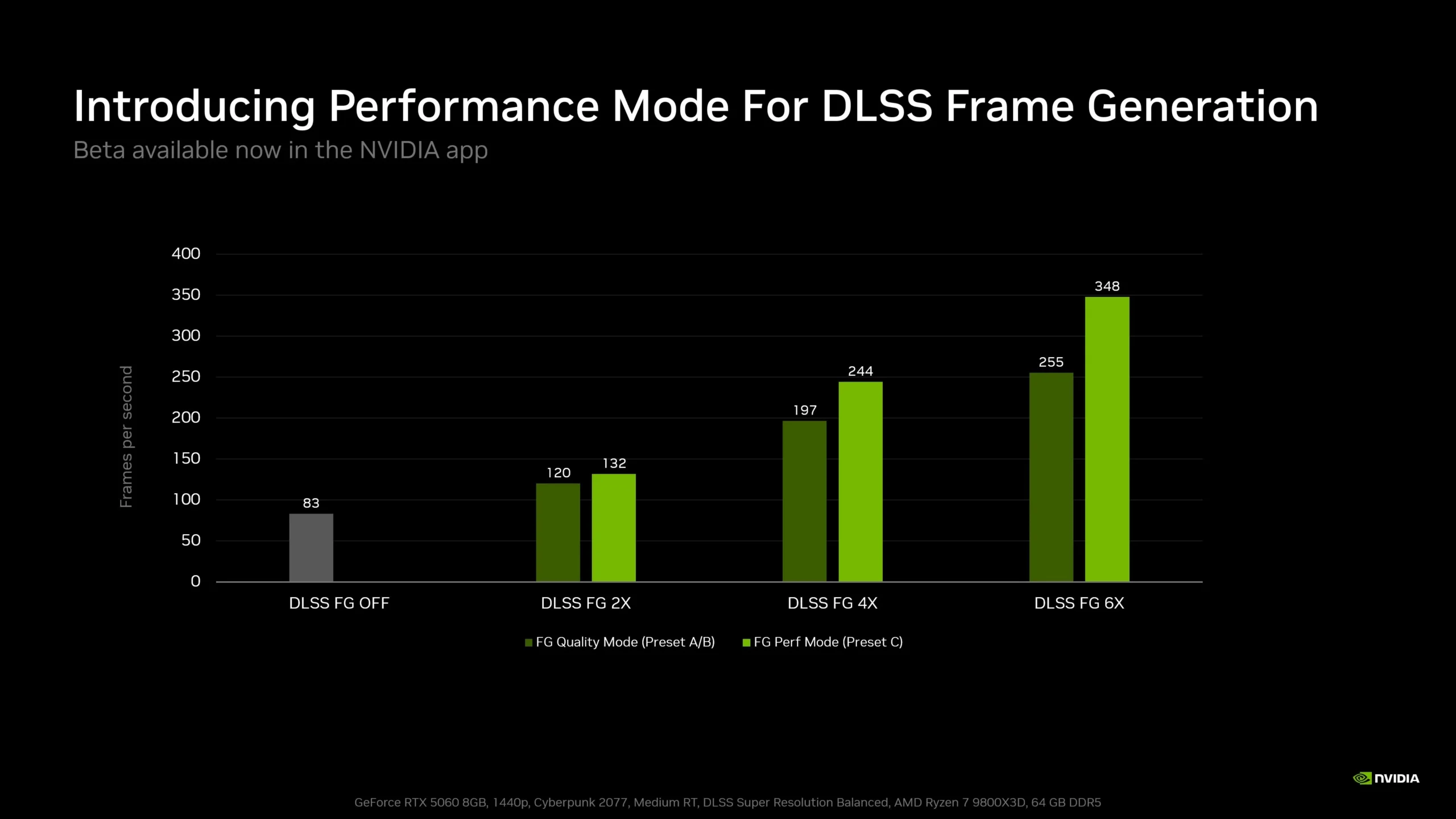
This includes DLSS Frame Generation, Multiframe Generation, and Dynamic Multiframe Generation. The trade-off to this new Performance Mode is, unsurprisingly, a dip in overall graphics quality. NVIDIA says that with Preset C, the new Performance Mode on an RTX 5060 generates frames up to 35% faster than the older model.
How To Activate It

It should be noted that Preset C is technically still in beta and requires you to access it via the NVIDIA App’s override settings. Mercifully, NVIDIA has provided an easy to understand step-by-step process:
- Download and install our newest NVIDIA app update via our website, or from inside the app itself
- Open the app, and in Settings –> About, tick “Opt in to access Beta or experimental features”
- Wait a moment for the beta update to download, then click the on-screen message to install
- Once installed, open the “Graphics” section of the new NVIDIA app beta and select a supported Frame Generation, Multi Frame Generation or Dynamic Frame Generation game (alternatively, select “Global Settings” at the top of the window and apply to every supported game in your library)
- Scroll to “Driver Settings”
- Click “DLSS Override – Model Presets”
- Click “Custom”
- Open the “Frame Generation” drop-down and choose “Preset C” (if Preset C isn’t visible, please reboot your system)
- Click “Apply”
And that’s it. Assuming you walked through each step, you should be able to reap ther benefits of the new Performance Mode.
(Source: NVIDIA)
The post NVIDIA Introduces Faster DLSS Frame Generation Performance Mode On RTX 50 And 40 Series appeared first on Lowyat.NET.
来源:Lowyat.NET · lowyat.net